Recalbox RGB Dual
The RGB Dual manual
Thank you for choosing Recalbox RGB Dual! We hope it brings you one step closer to the experience you have been looking for.
1. Compatibility
Recalbox RGB Dual is plug and play with Recalbox since version 8.1-Electron.
2. Prerequisites
To use Recalbox RGB Dual you will need:
- A Raspberry Pi 3, 4, 400 or Zero 2
- A monitor or a CRT TV
- A SCART cable (TV) or a VGA cable (monitor)
- Recalbox 8.1 or later
3. Connection
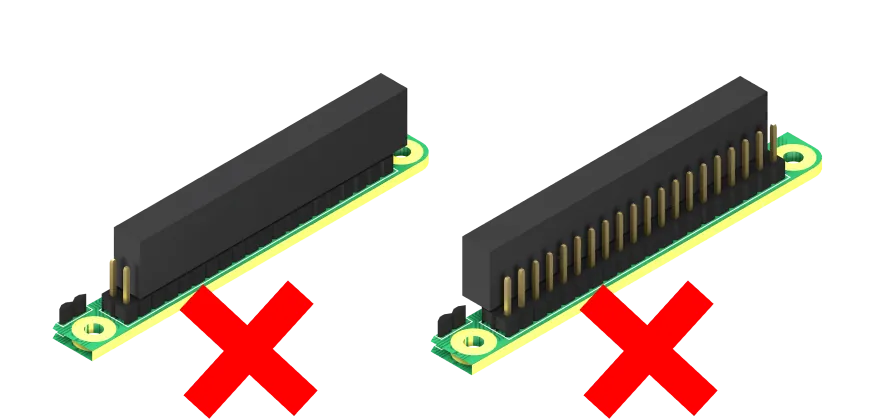
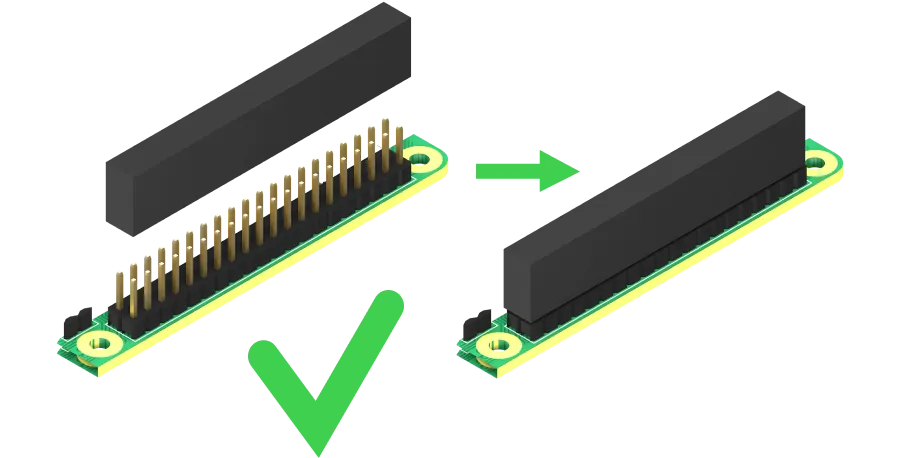
Connecting the Recalbox RGB Dual is easy, but always make sure you connect it the right way and on the right pins.
Unplug every cable (power, SCART, VGA) before any change.
4. Raspberry Pi 3 and 4
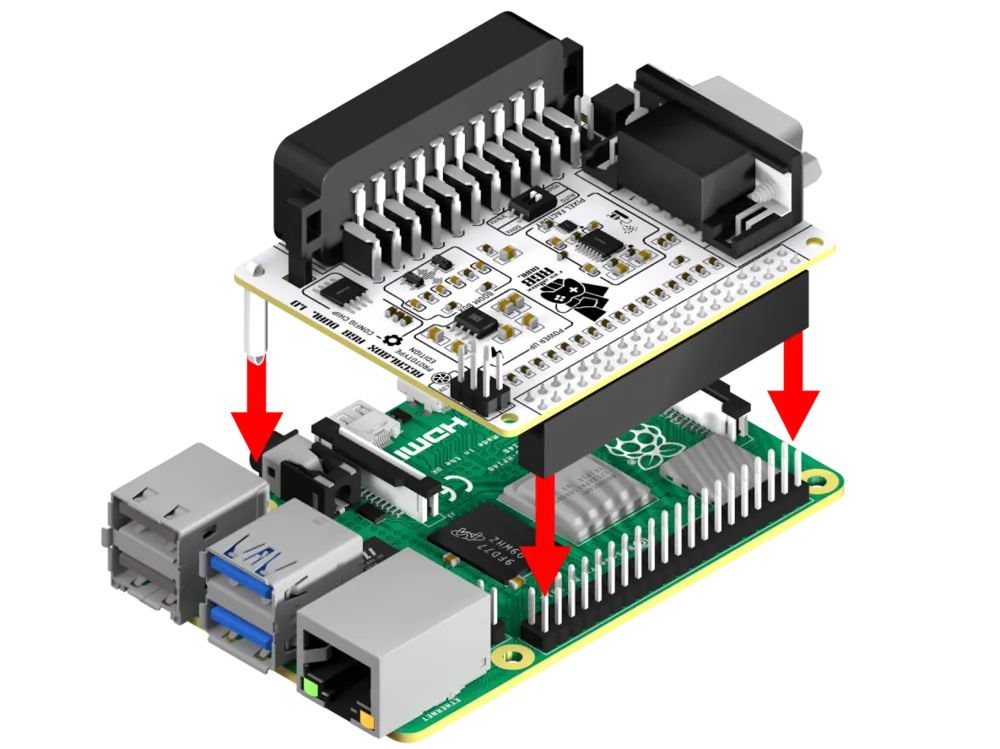
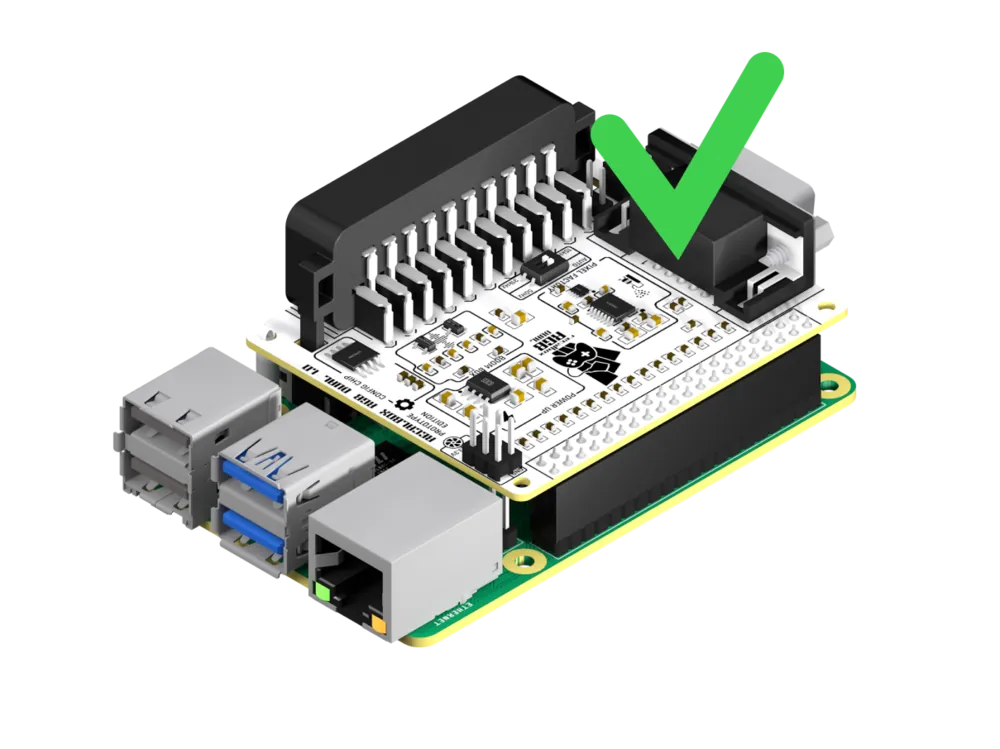
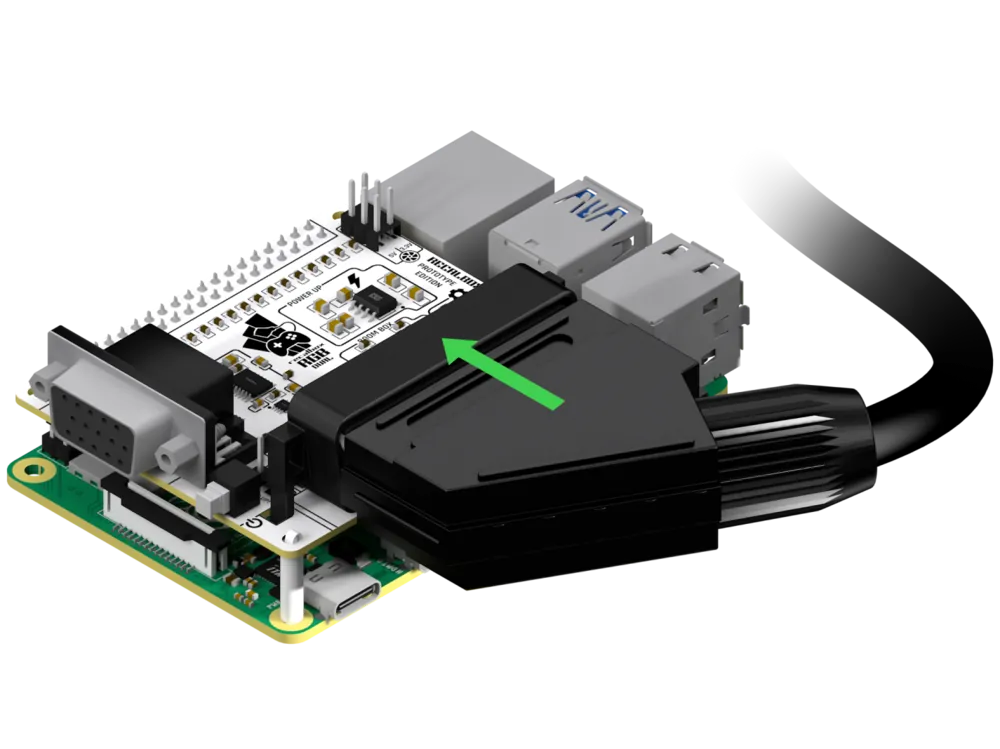
Clip the Recalbox RGB Dual directly onto the GPIO pins of the Raspberry Pi, then clip the spacers (the white plastic supports under the SCART socket) into the holes provided.
All that is left is to plug in the SCART cable.
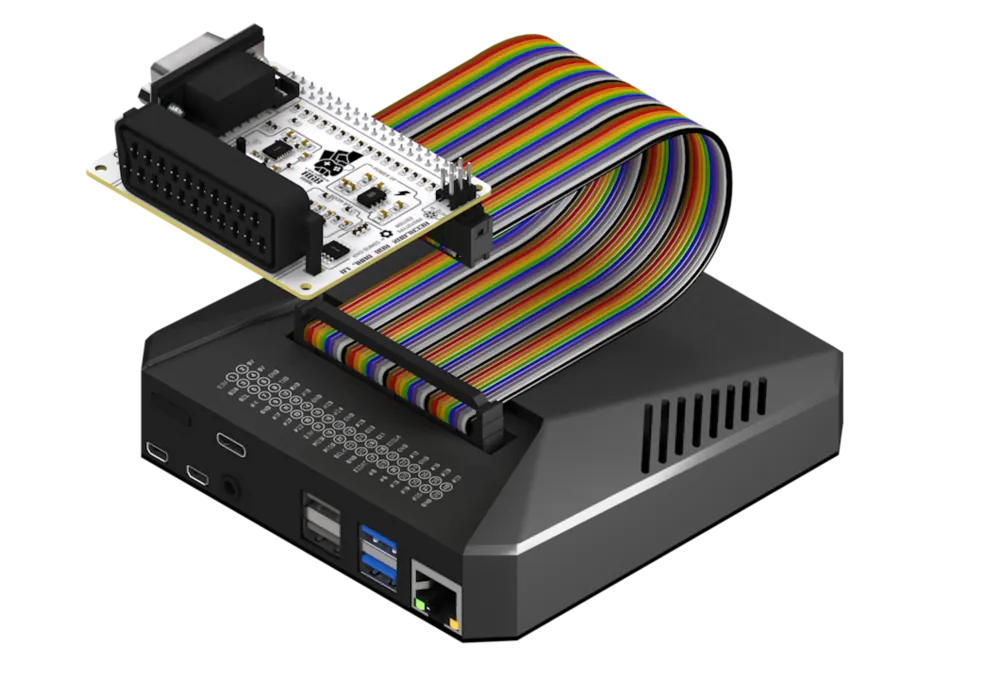
5. GPIO extension cable
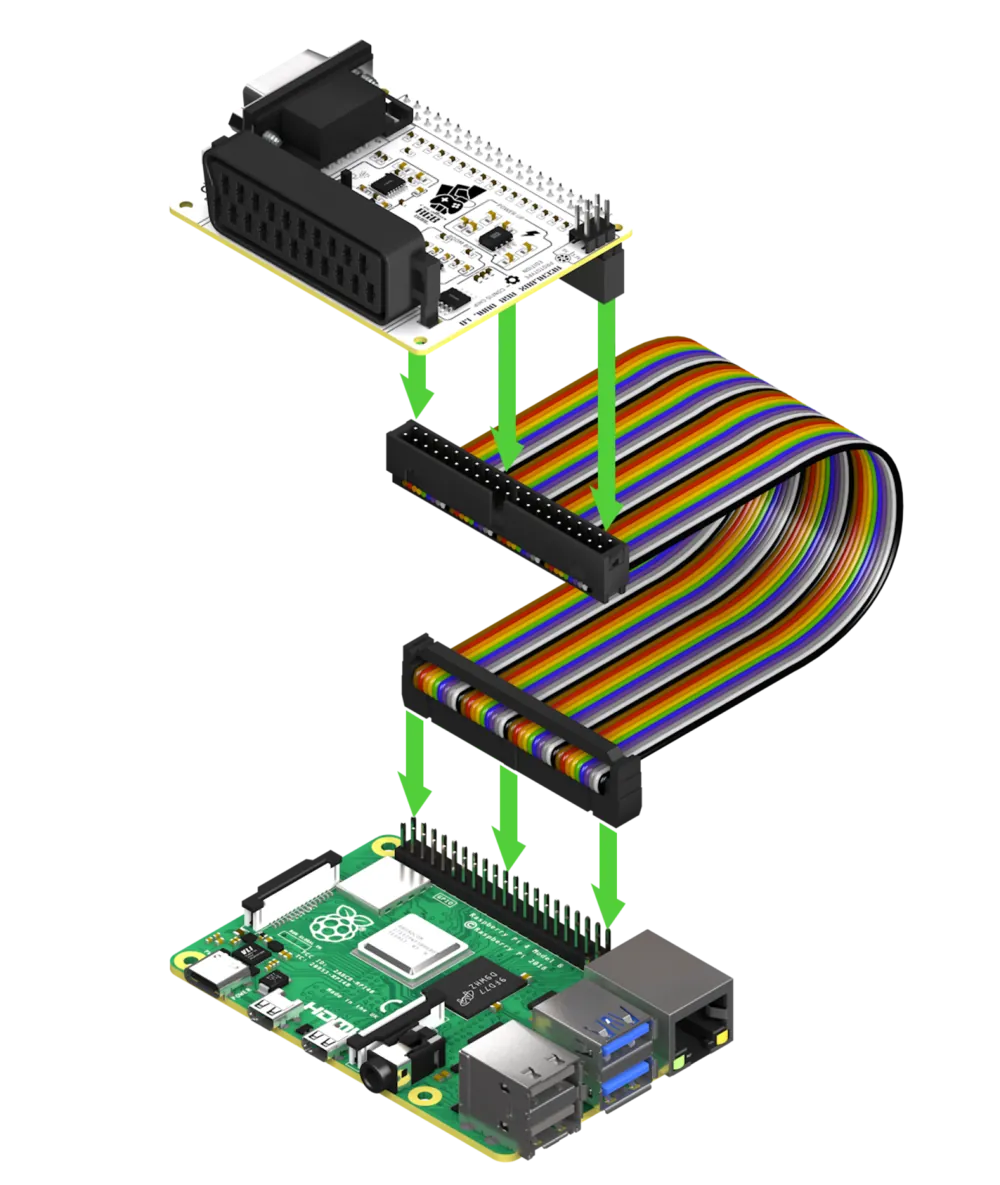
With the GPIO extension cable, check that the 40 GPIO pins of the Raspberry Pi go into the 40 inputs of the cable, and the 40 pins of the cable into the 40 inputs of the Recalbox RGB Dual. Clip the board in the same position as for a standard connection.
6. Raspberry Pi 400
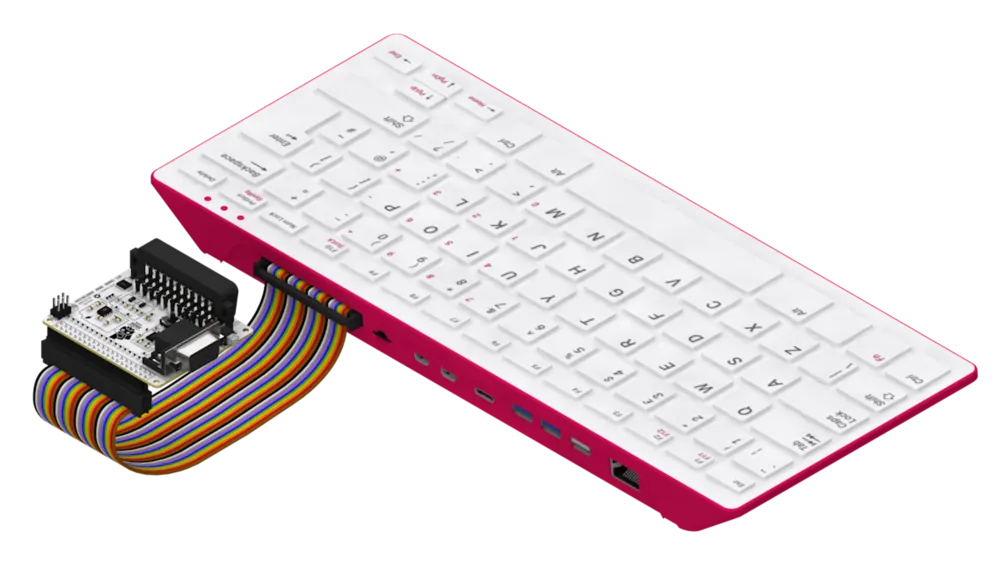
Plug the extension cable into the Pi 400, ribbon facing down. Then place the Recalbox RGB Dual with its SCART socket towards the front of the Pi 400 and connect it to the cable.
7. Use in a case
In a case, turn off everything specific to that case (scripts, configuration files): the GPIO pins such cases use for power management or fans can conflict with the Recalbox RGB Dual.
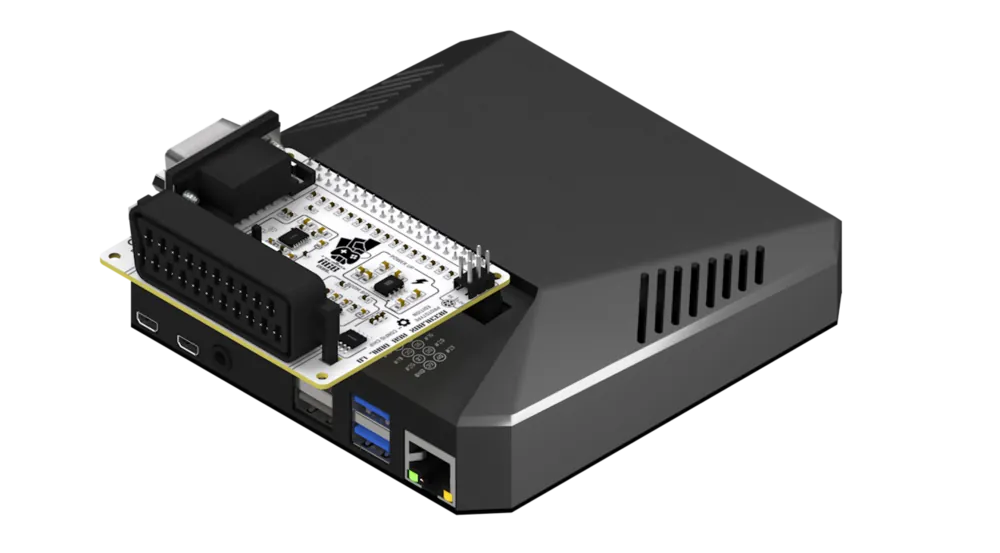
8. Argon One
On an Argon One, the board connects the other way round.
9. 50 Hz mode
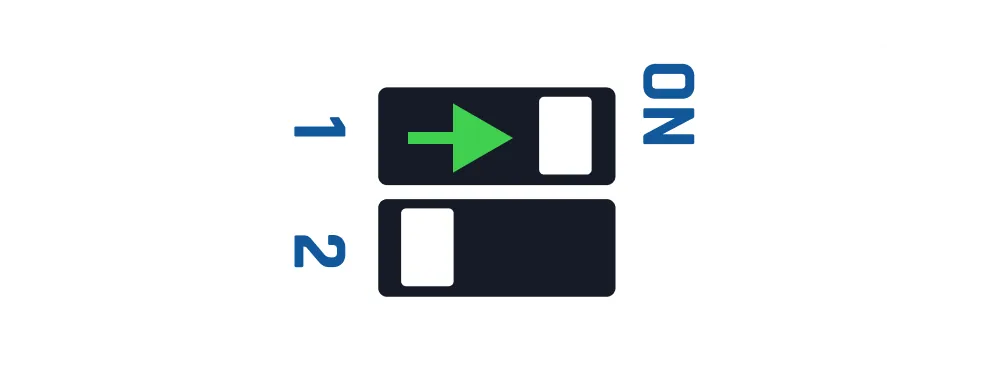
If the picture jumps on your TV, even in the menu, it probably does not support 60 Hz. Remove the plastic cover from the DIP switches and, with a thin object, move the top switch to 50 Hz: the menu and every game will run at 50 Hz.
10. 31 kHz monitors
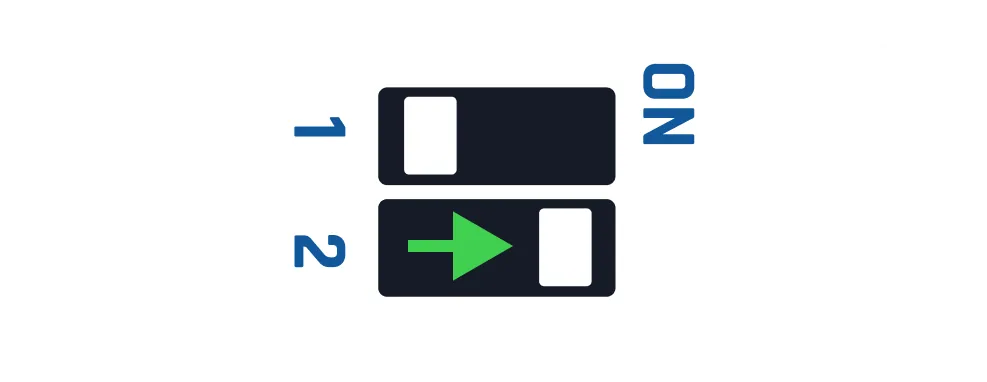
A monitor that supports 31 kHz can use the VGA output. The second switch forces 31 kHz for games and menus, so games display in 480p; it also sends the sound to the Raspberry Pi jack.
If your monitor supports 120 Hz, the « 240p on 31kHz » option of the CRT menu displays real 240p on it.
11. Configuration
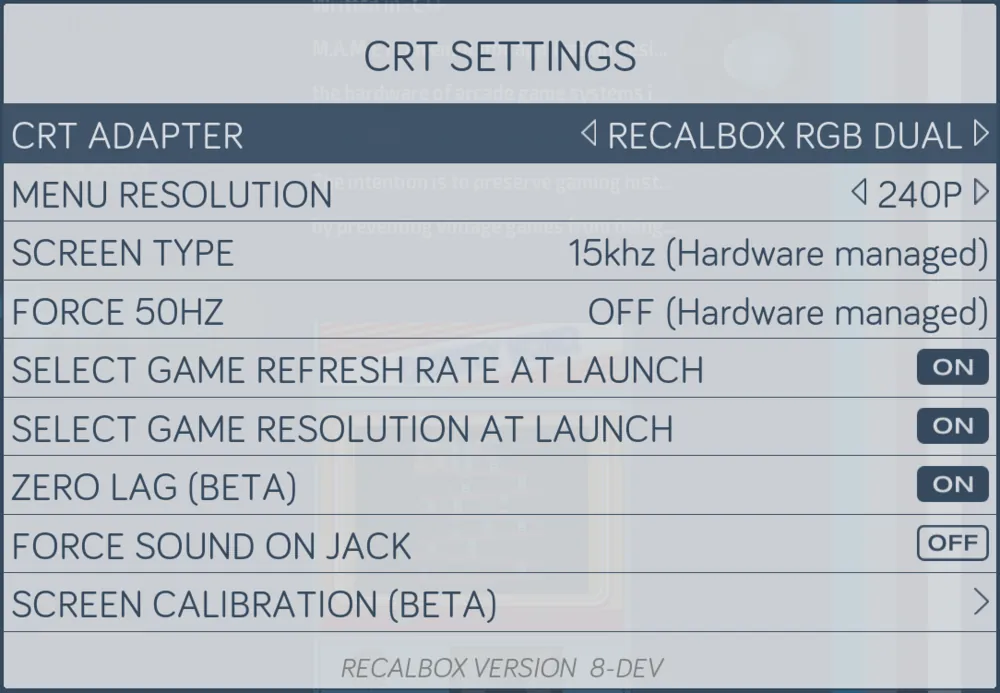
Recalbox RGB Dual needs no configuration, but a few options may interest you:
- Menu Resolution: 240p or 480i for the menus; 480i is more readable but flickers slightly.
- Select Game Refresh Rate: force the display mode (PAL, NTSC) or the region (EU, US, JP) of a game before launching it; OFF chooses by itself.
- Select Game Resolution: force the resolution of games at launch, on the systems that allow it (Dreamcast, Naomi, Atomiswave).
- Zero Lag: configures the emulators to minimise input lag.
- Force Sound on Jack: sound on the Raspberry Pi jack; on by itself when the 31 kHz switch is.
- Screen Calibration: calibrate the position of the picture and its width.
12. Raspberry Pi Zero 2
After soldering the header block onto the Pi Zero 2, connect the Recalbox RGB Dual the same way as on a Raspberry Pi 3 or 4.
13. Kodi
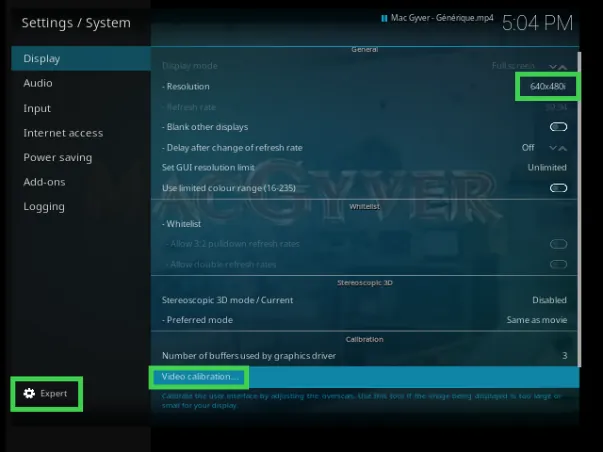
Watch the films and series of your childhood again with Kodi. In Settings → System → Display → Resolution, choose an interlaced mode (640x480 or 768x576), then switch to expert mode and use Calibration to fit the screen.
14. Theme
Only the default theme is optimised for CRT displays: with other themes, the same readability and display quality are not guaranteed.
15. Questions
- Can I connect the SCART and VGA outputs at the same time?
- No: the signal can only go to one screen, and it is only compatible with one or the other.
- Can I connect an HDMI cable at the same time as SCART or VGA?
- No, one cable at a time.
- Are all the systems of Recalbox compatible?
- Most are: all arcade games and over 70 systems.
- What about vertical games?
- Vertical games are supported on your CRT TVs.
- Why talk about Hz and kHz?
- Hz measures the vertical refresh rate (60 Hz = 60 frames per second), kHz the horizontal one (15 kHz = 15,000 lines per second): roughly the lines per frame times the frames per second.
The RGB Dual range · shop.recalbox.com